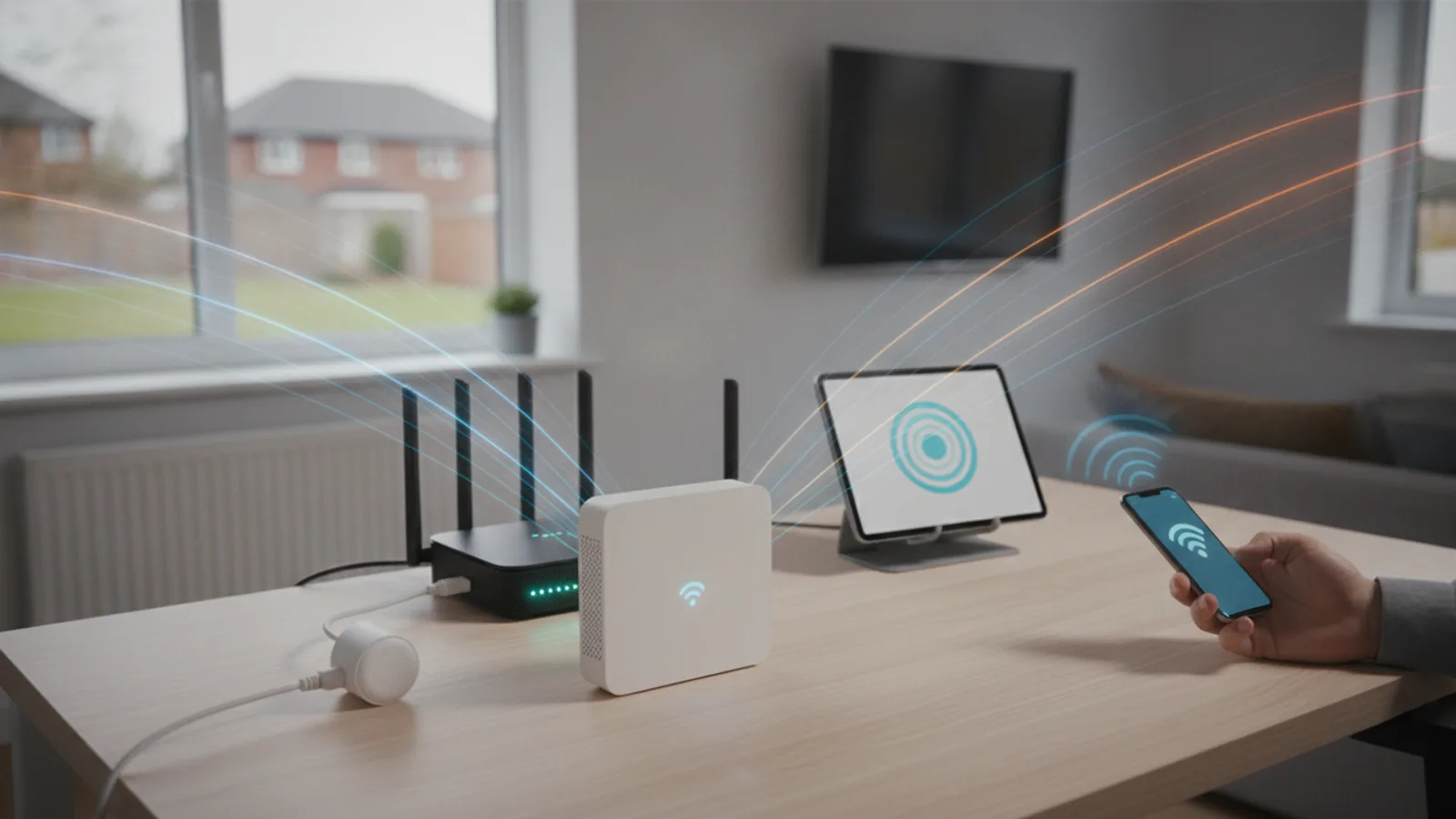
How Do Wifi Extenders Work
A WiFi extender, sometimes called a booster or repeater, is a simple device designed to solve one of the most common household tech problems: WiFi dead zones. If you have rooms where your signal drops or disappears entirely, an extender can help. This guide explains the technology behind how they work, the critical performance trade-offs you need to be aware of, and how to position and set one up for the best possible results in your home.
Fast Answer
- Core Function: Captures your existing WiFi signal from your router.
- Action: Rebroadcasts that signal on a new, extended area.
- Result: Increases WiFi coverage to reach dead zones.
- Key Trade-off: Typically halves the potential internet speed for devices connected to it.
Before You Start
Understanding how a WiFi extender functions is key to setting it up correctly. Gathering these few items and understanding the core placement rule will save you a lot of frustration.
- Your main WiFi router's network name (SSID) and password. You'll need these to connect the extender to your network.
- A WiFi extender device. Ensure it's compatible with your router's WiFi standard (e.g., WiFi 5/ac, WiFi 6/ax).
- A smartphone, tablet, or laptop. This is used for the setup process via a web browser or app.
- An available power socket located in the right spot—this is the most important factor for success.
How a WiFi Extender Works: A Step-by-Step Explanation
A WiFi extender is fundamentally a relay device. It works like having a friend halfway across a large field who listens to your message and then shouts it again so people further away can hear. Here’s a breakdown of the process.
Step 1: It Listens for Your Router's Signal
First, the WiFi extender uses its internal antennas to tune into and receive the wireless signal being broadcast by your main router. Think of it as one half of a walkie-talkie set to "receive" mode. For this to work effectively, the signal it receives must be strong and stable. If you place the extender in a location where your phone only has one bar of WiFi, the extender will also only have a poor signal to work with. Rubbish in, rubbish out.
This is why placement is so critical. The ideal spot is one where the extender can still get a robust, reliable connection from the router. Most extenders have a signal strength indicator light to help you find this sweet spot.
Step 2: It Processes and Rebroadcasts the Signal
Once the extender receives the data from your router, it processes it and then broadcasts it again on its own signal. This new signal is what your devices in the previously hard-to-reach areas will connect to. This creates a second "hop" for your data. Your laptop sends a request to the extender, the extender sends that request to the router, and then the whole process happens in reverse with the answer.
This "listen and repeat" action is what causes the main performance drawback. A standard, single-band extender has to use the same radio to both receive data from the router and send data to your devices. It cannot do both simultaneously. It has to rapidly switch between listening and talking, which effectively cuts the maximum potential bandwidth (your WiFi speed) in half.
Step 3: Creating a New Network Layer
During setup, you'll connect the extender to your main router's network. You typically do this in one of two ways:
- WPS (Wi-Fi Protected Setup): This is the easiest method. You press the WPS button on your router, then press the WPS button on your extender. They automatically find each other and securely share the network name and password.
- Web Browser Setup: If WPS fails or isn't available, you'll use a phone or laptop to connect to a temporary WiFi network created by the extender itself. From there, you open a web browser, go to a specific address listed in the manual, and follow the on-screen instructions to select your home network and enter the password.
Once configured, the extender will usually create a new network name, often by adding "_EXT" to your existing one (e.g., "MyHomeWiFi" becomes "MyHomeWiFi_EXT"). You must then manually connect your devices in the dead zone to this new network.
Step 4: Managing Traffic on Different Frequency Bands
Modern routers and extenders are "dual-band," meaning they operate on two different frequencies: 2.4GHz and 5GHz.
- 2.4GHz: This frequency has a longer range and is better at penetrating walls, but it's slower and more susceptible to interference from other devices like microwaves and cordless phones.
- 5GHz: This frequency is much faster and less congested, but has a shorter range and is easily blocked by solid objects like brick walls.
A good dual-band extender can use these frequencies intelligently to improve performance. It can establish a dedicated, high-speed link to the router on the 5GHz band (this is called the "backhaul") while using the 2.4GHz band to broadcast the signal to your devices. This helps to overcome some of the speed loss from the "listen and repeat" problem, as it's like having two separate bridges for traffic instead of one.
Step 5: Your Device Connects to the Strongest Signal
Finally, your phone, smart TV, or laptop in the extended coverage area sees the new "_EXT" network. When you connect to it, your traffic is routed through the extender back to the main router, and then out to the internet. The process is transparent to your device once connected; it just sees a strong WiFi signal.
However, a key weakness of extenders is that devices aren't always smart about switching. Your phone might stay "stuck" to the weak signal from your main router even when you're standing right next to the extender. You often have to manually disconnect and reconnect to the extender's network for the best speed, which isn't a seamless experience.
Quick Reference
| Situation | Try This | Why It Works |
|---|---|---|
| The extender's signal is weak or drops out. | Move the extender closer to the main router. | It needs a strong, reliable signal to extend. A poor input signal results in a poor output signal. |
| Speeds are very slow when connected to the extender. | Confirm it's a dual-band extender and check its settings. | Using one band for the backhaul (to the router) and the other for devices can significantly improve throughput. |
| My device stays on the router's weak signal. | Manually switch your device's WiFi to the extender's network (e.g., "MyHomeWiFi_EXT"). | Extenders don't manage connections. Your device clings to the original signal until you force it to switch. |
| I need seamless coverage while moving around the house. | Invest in a Mesh WiFi system instead of an extender. | Mesh systems use multiple nodes that work together as a single, intelligent network, smoothly handing off your device between them. |
Common Problems When Using a WiFi Extender
While extenders can be effective, their simple design leads to common frustrations. Being aware of them helps you set realistic expectations.
1. The Inevitable Speed Drop
As explained, most extenders will halve your potential WiFi speed. If you have a 100 Mbps connection at your router, you should only expect a maximum of 50 Mbps when connected through the extender, and likely less due to distance and interference. This is not a fault; it's a limitation of the technology.
2. "Sticky" Devices and Awkward Handoffs
This is a major issue. Your smartphone is designed to hold onto a WiFi connection for as long as possible. As you walk from your router towards your extender, your phone will cling to the router's fading signal for too long, resulting in a poor connection. It won't intelligently switch to the stronger extender signal. This requires you to toggle your WiFi off and on, or manually select the extender's network.
3. Creating Network Confusion
The separate "_EXT" network can be confusing for family members and for smart home devices. You have to decide which network to join depending on where you are in the house. Some extenders offer a "one network" feature, but this can make the "sticky device" problem even worse, as you have no visibility into whether you're connected to the fast router or the slower extender.
4. Interference and Poor Placement
Placing an extender behind a TV, near a microwave, or next to a large metal object like a refrigerator can severely degrade its performance. Furthermore, if you live in a crowded flat block, your extender is competing with all your neighbours' WiFi networks, which can lead to an unstable connection.
Advanced Tips for Better Extender Performance
If you're willing to go beyond the basic plug-and-play setup, you can extract much better performance from your extender.
Use an Ethernet Backhaul (Access Point Mode)
This is the single best way to improve performance. Most WiFi extenders have an Ethernet port. If you can run an Ethernet cable from your main router to the extender's location, you can switch the extender into "Access Point" (AP) mode. In this mode, it no longer uses WiFi to communicate with the router. Instead, it gets a full-speed, perfect signal via the cable. It then broadcasts a fresh, full-speed WiFi signal in the remote area. This completely eliminates the bandwidth-halving problem and is far more reliable.
Update the Firmware
Manufacturers regularly release firmware updates for their devices. These can include security patches, stability improvements, and performance tweaks. It's worth checking the manufacturer's support website every six months or so to see if a new version is available for your model. The update process is usually done through the extender's web admin panel.
Manually Set WiFi Channels
If you live in a congested area, your router and extender might be trying to use the same WiFi channels as your neighbours, causing interference. Using a WiFi analyser app on your phone, you can see which channels are least crowded. You can then log in to your router and extender's settings and manually assign them to these clearer channels (e.g., 1, 6, or 11 for 2.4GHz) for a more stable connection.
How Do Wifi Extenders Work FAQ
Do WiFi extenders actually work?
Yes, they do work for their intended purpose: extending the reach of a WiFi signal to cover a dead zone. However, they always come with a performance trade-off, primarily a reduction in speed.
Will a WiFi extender make my internet faster?
No. This is a common misconception. A WiFi extender cannot make your internet connection faster than the speed provided by your ISP and your main router. It extends the signal's range, but it reduces the maximum speed for any device connected to it.
Can I use more than one WiFi extender?
You can, but it is strongly discouraged. Connecting one extender to another extender (a practice called "daisy-chaining") will amplify the performance problems. Each "hop" adds more latency and halves the bandwidth again, resulting in an extremely slow and unstable connection.
What's the difference between a WiFi extender, repeater, and booster?
In the consumer market today, these terms are used interchangeably to describe the same type of device. They all capture an existing wireless signal and rebroadcast it to increase coverage.
Is a mesh WiFi system better than an extender?
For most people, yes. A mesh system is a more modern, intelligent solution. It consists of multiple nodes that work together as a single, seamless network under one name. They manage device connections automatically, ensuring you're always connected to the best node without manual switching, and use a dedicated backhaul channel for much better performance. They cost more, but the user experience is significantly better.
Final Checklist for Understanding WiFi Extenders
Before you buy or as you set up, run through this final checklist to ensure you understand the technology and its limitations.
- Acknowledge the Speed Trade-Off: Remember that an extender repeats a signal, which typically halves its speed. Don't expect full-speed performance in your dead zone.
- Master the Placement Rule: The extender must be placed midway between the router and the dead zone, where it can still receive a strong signal.
- Identify the New Network: Be prepared to connect devices to a new network name, usually ending in "_EXT".
- Check for Dual-Band Capability: A dual-band extender can offer better performance by using different frequencies to talk to the router and your devices.
- Consider Access Point Mode: If possible, running an Ethernet cable to the extender and using it in AP mode will provide the best possible speed and reliability.
- Evaluate if Mesh is a Better Fit: If seamless roaming and high performance are your top priorities, a mesh WiFi system is a superior, albeit more expensive, solution.