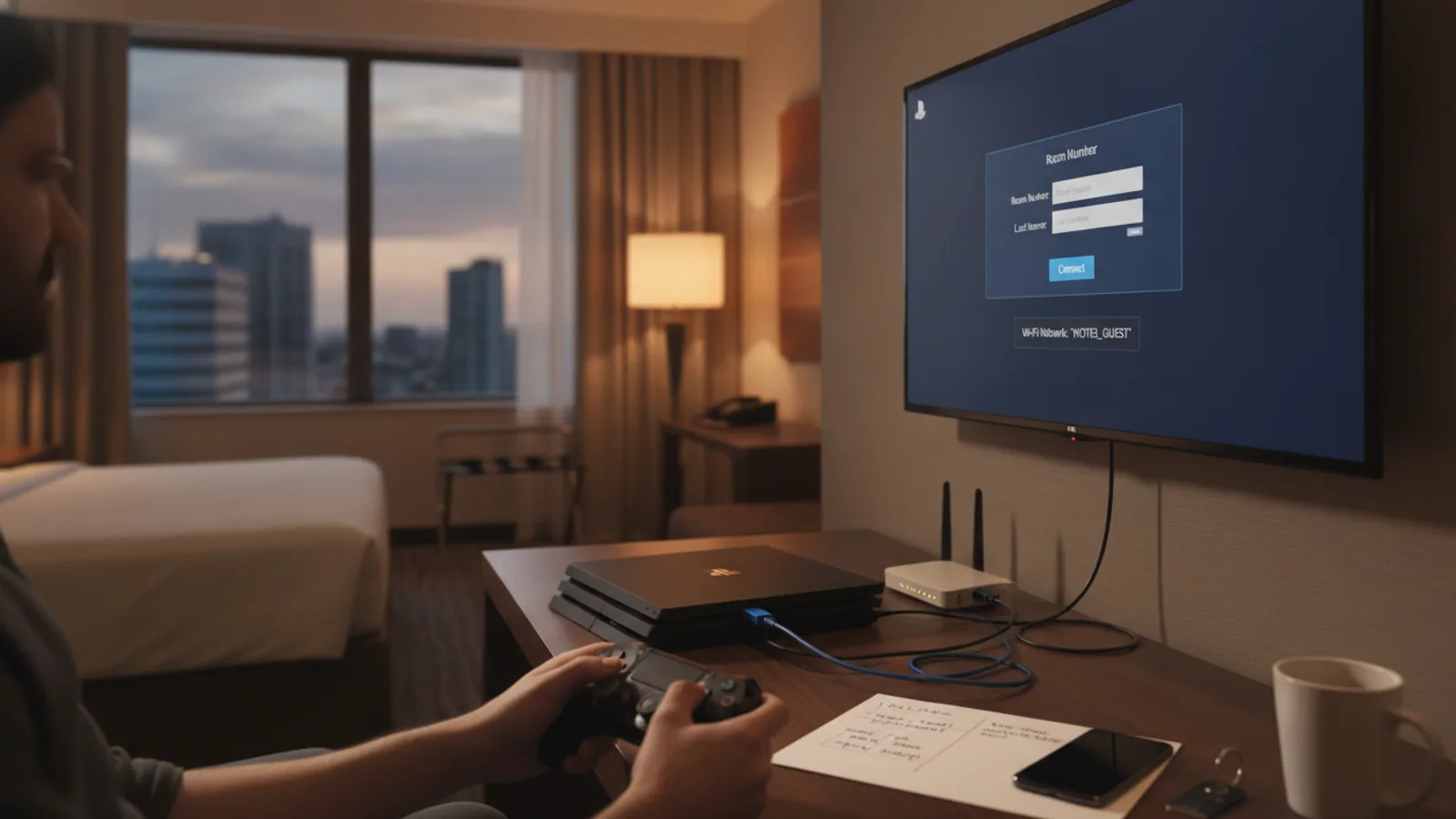
How To Connect A Ps4 To A Hotel Wifi
Taking your PlayStation 4 on your travels is a great way to unwind, but connecting to hotel Wi-Fi can be a frustrating experience. Most hotels use a special login page, known as a captive portal, which the PS4's standard network settings can't handle. This guide provides step-by-step instructions on how to bypass this login screen and get your console online. We'll cover the main method using the PS4's hidden browser, plus several reliable backup options for when that doesn't work.
Fast Answer
- Primary Method: Use the 'User's Guide' trick.
- Process: Attempt to connect, then go to Settings > User's Guide/Helpful Info > User's Guide.
- Result: This forces the hotel's login page to open, allowing you to authenticate.
Before You Start
- Your PlayStation 4 console, its power cable, and an HDMI cable.
- At least one DualShock 4 controller and its charging cable.
- The hotel's Wi-Fi network name (SSID) and password, if one is required before the login page.
- A smartphone or a laptop is highly recommended as a backup tool.
- An Ethernet cable is optional but can provide a much faster and more stable connection if a port is available in your room.
Step-by-Step Instructions
Power On and Initiate the Connection
First, set up your PS4 and connect it to the hotel room TV using the HDMI cable. Power on the console. From the main dashboard, navigate to the top menu and select Settings (the toolbox icon). In the Settings menu, go to Network.
Inside the Network menu, choose Set Up Internet Connection. When asked how you want to connect, select Use Wi-Fi. Finally, choose the Easy setup method. Your PS4 will now scan for all available wireless networks in the area.
Select the Hotel Network
From the list of available networks, find and select your hotel's Wi-Fi network. The name is often printed on a card in your room or on the keycard sleeve. If it requires a simple password at this stage (before the main login page), enter it now. The PS4 will then attempt to connect.
It will likely succeed at 'Obtain IP Address' but fail at 'Internet Connection'. This is the expected outcome and means the console is on the network but blocked by the hotel's login page. Don't worry; the next step will address this.
Trigger the Login Page via the User's Guide
This is the most critical step. Once the initial connection test fails, press the circle button to go back. Instead of testing the connection again, navigate back to the main Settings menu. From there, scroll down and find User's Guide/Helpful Info, and then select User's Guide.
This action forces the PS4 to open its basic internal web browser to display the online manual. Because the console is now connected to the hotel network (but without full internet access), the network will redirect this browser request to its captive portal login page. The page asking for your room number, name, or to accept terms and conditions should now appear on your screen.
Authenticate on the Captive Portal
You should now see the hotel's Wi-Fi login page. Use your controller's left stick to move the cursor, and press the X button to click on text fields or buttons. Carefully enter the required information, such as your room number and last name. Be sure to scroll down and tick any boxes to accept the terms of service.
Once all information is entered correctly, navigate to the 'Connect', 'Login', or 'Submit' button and press X. The page should refresh to a confirmation screen indicating that you are now connected to the internet.
Verify Your Internet Connection
Once you see the confirmation message, press the circle button repeatedly to exit the browser and return to the PS4's main dashboard. To confirm everything is working, go back to Settings > Network and select Test Internet Connection.
This time, the test should show 'Successful' for all items, including 'Obtain IP Address', 'Internet Connection', and 'PlayStation Network Sign-In'. You are now ready to download games, stream content, and play online.
Alternative Method: Use Your Smartphone's Hotspot
If the User's Guide method fails, your smartphone is your next best tool. First, connect your phone to the hotel Wi-Fi. The captive portal login page should automatically pop up on your phone's browser. Complete the login process on your phone.
Once your phone has internet access, enable its mobile hotspot or personal hotspot feature in your phone's settings. This creates a new, private Wi-Fi network. Now, on your PS4, go back to Set Up Internet Connection and connect to your phone's hotspot network instead of the hotel's. Your PS4 will now get its internet connection through your phone, completely bypassing the hotel's login page.
Alternative Method: Use a Laptop as a Bridge
This method is similar to the smartphone hotspot but often provides a more stable connection. Connect your Windows or Mac laptop to the hotel's Wi-Fi and complete the login process through its web browser.
Once your laptop is online, you can share its connection. On Windows, search for "Mobile Hotspot" in the Start Menu and turn it on. On a Mac, go to System Settings > Sharing > Internet Sharing, choose to share your connection from 'Wi-Fi', and enable the checkbox. On your PS4, search for networks again and connect to the new network created by your laptop.
Last Resort: Contact Hotel IT Support
If none of the above methods work, your final option is to contact the hotel's staff. Ask for the front desk or the dedicated IT support helpline. Explain that you are trying to connect a gaming console and that it cannot access their login page. You will need to provide them with your PS4's MAC address.
To find this, go to Settings > System > System Information on your PS4. You will see two MAC addresses listed: one for Wi-Fi and one for LAN (Ethernet). Give them the Wi-Fi MAC address. The IT support staff can often manually add this address to their system's "allow list," granting your PS4 internet access without needing the login page.
Quick Reference
| Situation | Use this | Why |
|---|---|---|
| Standard hotel connection | User's Guide trick | Forces the PS4's browser to open the hotel's login page. |
| User's Guide trick fails | Phone or Laptop Hotspot | Bypasses the PS4's need to see the login page entirely. |
| You have an Ethernet port | Wired Connection | Often faster, more stable, and may skip the login page. |
| All self-service fails | Call Hotel IT with MAC Address | Support can manually authorise your device on their network. |
Common Problems When You Connect A PS4 To A Hotel Wifi
Even with the right method, you might encounter a few hurdles. Here are the most common issues and how to resolve them.
The Login Page Never Appears
Sometimes, even the User's Guide trick doesn't trigger the captive portal. If this happens, try a full restart of your PS4. Power it down completely (don't use Rest Mode), wait 30 seconds, and turn it back on. Re-attempt the connection process from step one. A fresh start can often clear network configuration glitches.
Very Slow Connection or Constant Lag
This is unfortunately common on shared hotel networks. The entire building is sharing one connection. For a better experience, try to play during off-peak hours (e.g., mid-day on a weekday or very late at night). Also, check your room thoroughly for a physical Ethernet port—often near the desk or TV. A wired connection is almost always superior to Wi-Fi.
The Connection Keeps Dropping
Some hotel networks are configured to "forget" devices after a few hours of inactivity to manage bandwidth. If you find yourself having to re-authenticate every day, using the laptop or smartphone hotspot method can be a more permanent solution for the duration of your stay, as your phone or laptop will handle the single login.
Advanced Tips for Connecting A PS4 To A Hotel Wifi
For frequent travellers or those seeking the best possible connection, consider these advanced strategies.
Invest in a Travel Router
A travel router is a small, portable device designed for exactly this scenario. You connect the travel router to the hotel's network (either via Wi-Fi or an Ethernet cable). You then use your phone or laptop to access the travel router's simple interface and log in to the hotel's captive portal just once. After that, the travel router creates its own secure, private Wi-Fi network. You can connect your PS4, phone, and any other devices to it without having to authenticate each one individually. This is by far the most reliable and convenient solution for gamers on the go.
Change Your DNS Settings
After you've successfully connected, if you experience issues accessing the PlayStation Network or other services, it might be due to the hotel's DNS servers. You can manually change these to a public, more reliable service. Go to Settings > Network > Set Up Internet Connection > Use Wi-Fi > Custom. Go through the settings, selecting 'Automatic' for IP Address and 'Do Not Specify' for DHCP Host Name. When you get to DNS Settings, choose Manual. Set the Primary DNS to 8.8.8.8 and the Secondary DNS to 8.8.4.4 (Google's public DNS). This can sometimes improve connection stability.
How To Connect A Ps4 To A Hotel Wifi FAQ
Is it safe to connect my PS4 to hotel Wi-Fi?
It's as safe as connecting any other device. Treat it as an untrusted public network. Your PSN login is encrypted, but it's wise to avoid entering payment details or logging into other sensitive services. Stick to gaming and streaming.
Can I play online multiplayer games on hotel Wi-Fi?
Yes, but your experience may vary greatly. Hotel networks are not optimised for gaming and often have high latency (ping), which causes lag. Slower-paced games might be fine, but fast-paced competitive shooters or fighting games may be unplayable.
Why can't the PS4 just open the login page like my phone does?
Modern smartphones and laptops have operating systems designed to automatically detect captive portals and launch a full-featured web browser. The PS4's operating system is a more specialised, closed environment focused on gaming, and its network functionality and internal browser are much more basic.
Will the hotel charge extra for using my PS4 online?
Most hotels offer a standard tier of Wi-Fi for free. As long as you are using this, there should be no extra charge. However, be aware that some hotels offer a paid "premium" or "high-speed" internet package. Make sure you are selecting the standard option on the login page to avoid unexpected charges.
Final Checklist for Connecting A Ps4 To A Hotel Wifi
- Packed your PS4, controller, power cable, and HDMI cable.
- Brought an Ethernet cable for a potentially faster, easier connection.
- Have your smartphone or laptop ready as a backup hotspot.
- Located the hotel's Wi-Fi network name (SSID).
- Attempted the main 'User's Guide' method first.
- Found your PS4's Wi-Fi MAC address in System Information in case you need to call support.
- Set realistic expectations for gaming performance on a shared public network.