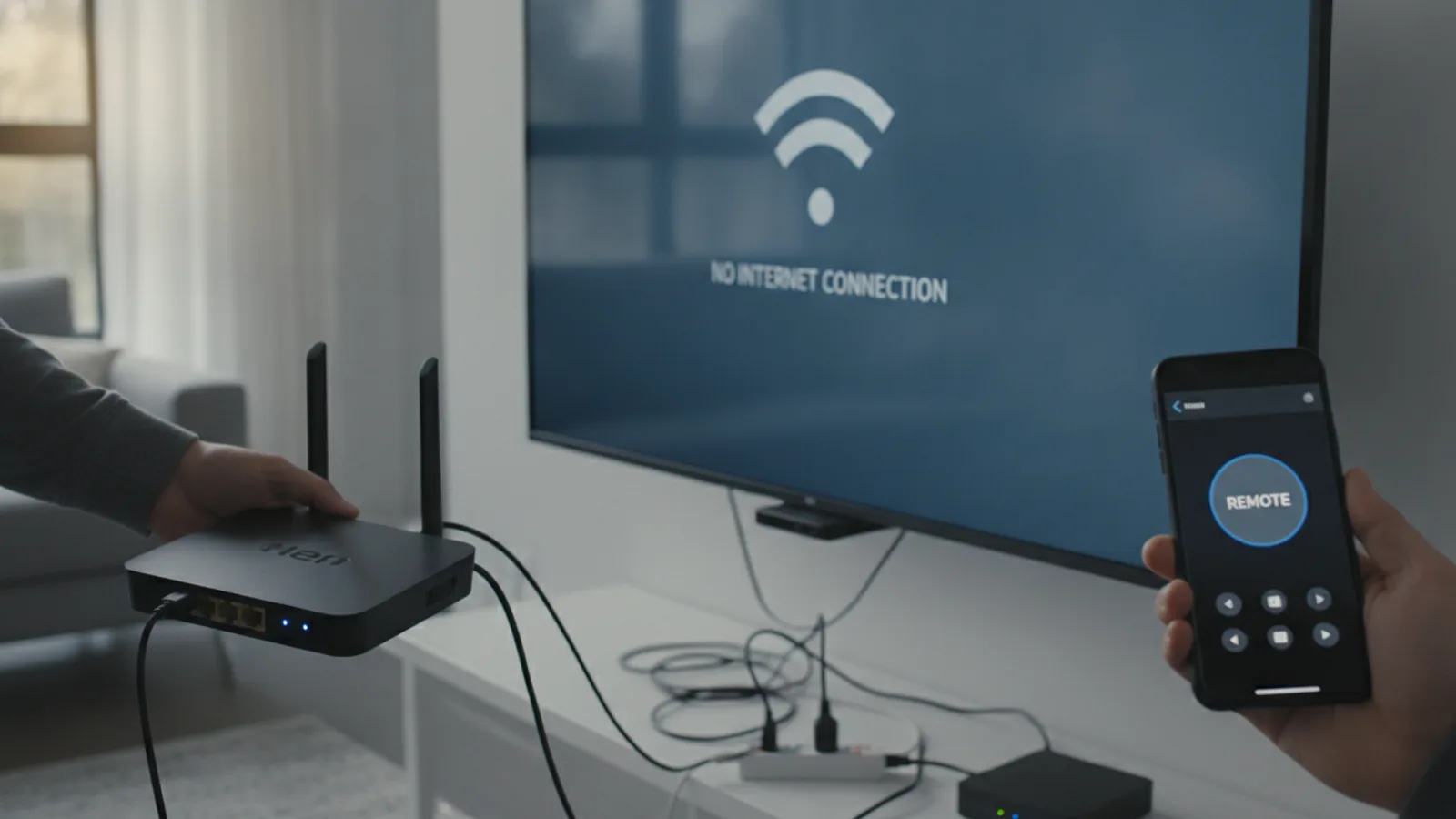
How To Connect A Roku To Wifi Without A Remote
Losing your Roku remote is frustrating, especially when you need to connect your device to a new WiFi network. Without the remote, you can't navigate the menus to enter a new password. This guide provides a clever workaround using your smartphone and a mobile hotspot. We'll walk you through creating a temporary network that your Roku can connect to, allowing you to use the Roku mobile app as a remote. From there, you can easily switch your device over to your proper home WiFi network.
Fast Answer
- Primary Method: Use the Roku mobile app's remote feature.
- The Catch: Your phone and Roku must be on the same WiFi network.
- The Solution: Use a second phone to create a mobile hotspot.
- Key Step: Name the hotspot with the *exact* same SSID and password as the last WiFi network your Roku used.
- Final Action: The Roku will auto-connect to the hotspot, letting you use the app to switch it to your new home WiFi.
Before You Start
- Your Roku streaming player or TV and its power lead.
- A primary smartphone (iOS or Android) with the official Roku app installed.
- A second smartphone or tablet capable of creating a mobile WiFi hotspot. This is essential for the workaround.
- The name (SSID) and password for your current home WiFi network.
- Crucially: The name (SSID) and password of the previous WiFi network your Roku was connected to. This is the key to the easiest method.
Step-by-Step Instructions
Understand the Core Problem: The WiFi Catch-22
The main challenge is a simple but frustrating digital loop. The official Roku app can act as a fully functional remote, but only when your smartphone and your Roku device are connected to the same WiFi network. If you've moved house, changed your broadband provider, or simply updated your WiFi password, your Roku is offline and cannot be seen by the app. You can't use the app to get the Roku online, because the Roku isn't online for the app to find.
Our goal is to break this cycle by creating a familiar network environment for the Roku. By using a mobile hotspot that mimics the Roku's last known WiFi network, we can trick it into connecting. This brings it onto a network that your smartphone can also join, finally allowing the app to take control.
Prepare Your Mobile Hotspot
Take your second smartphone or tablet—the one that will act as a temporary router. You need to enable its mobile hotspot feature. The exact steps vary slightly between devices:
- On an iPhone/iPad: Go to Settings > Mobile Data > Personal Hotspot and toggle 'Allow Others to Join' on.
- On an Android phone/tablet: Swipe down from the top and tap the Hotspot icon, or go to Settings > Network & Internet > Hotspot & tethering and toggle it on.
Now for the most important part: configuring the hotspot. You must set the hotspot's Network Name (SSID) and Password to be identical to the previous WiFi network your Roku was connected to. This includes capitalization, spaces, and any special characters. For example, if your old network was "SKY-12345" with the password "MyPassword123", your hotspot must be configured with exactly the same details. Your Roku stores these credentials and will automatically connect when it detects a network with a matching name and password.
Connect Your Primary Phone to the Hotspot
Now, pick up your primary smartphone—the one with the Roku app installed. Go to its WiFi settings. You should see the mobile hotspot you just created appear in the list of available networks. Select it and enter the password to connect.
At this point, both the device that will control the Roku (your primary phone) and the network the Roku is about to join (the hotspot) are ready. Your phone will temporarily lose its internet connection via your home broadband, which is normal.
Power On Your Roku and Let It Connect
Make sure your Roku is plugged in and connected to your TV. Turn it on. Because it is programmed to search for its last known network, it will scan the airwaves, find your mobile hotspot (which it thinks is your old router), and automatically connect to it. This may take a minute or two.
You won't see much happen on the TV screen itself, as it will likely just sit on the home screen. The magic is happening in the background. The Roku is now online and on the same network as your primary smartphone.
Use the Roku App to Find and Control Your Device
On your primary phone (which is connected to the hotspot), open the official Roku app. Tap on the "Devices" tab, usually found at the bottom of the screen. The app will automatically scan the network for Roku players. Your device should appear in the list.
Tap on its name to connect. Once paired, tap the "Remote" icon. You should now see a digital remote control on your screen with a directional pad, an OK button, and other familiar controls. Try using the directional pad; you should see the selection on your TV screen move accordingly. You now have full control of your Roku.
Navigate to Network Settings on Your Roku
Using the remote control within the app, you can now navigate the Roku's on-screen menu. Follow this path carefully:
- Press the Home button (house icon) in the app to ensure you're on the main screen.
- Use the up/down arrows on the app's directional pad to scroll to Settings and press OK.
- In the Settings menu, select Network and press OK.
- Select Set up connection and press OK.
- Choose Wireless as the connection type and press OK.
Your Roku will now disconnect from the hotspot and begin scanning for all available WiFi networks in your home.
Connect The Roku to Your Home WiFi Network
A list of WiFi networks will appear on your TV screen. Use the app's remote to scroll through the list and find your proper home WiFi network name. Select it and press OK.
You will be prompted to enter the password. When you select the password field, a keyboard should appear both on the TV screen and, more conveniently, within the Roku app on your phone. Use your phone's keyboard to type in your home WiFi password correctly. Double-check for typos, then select Connect.
Your Roku will now connect to your home network. You'll see a series of on-screen checks confirming the connection to the wireless network and then to the internet. Once successful, you're almost done.
Reconnect Your Phone and Tidy Up
The moment your Roku connects to your home WiFi, the app on your phone will lose its connection, because your phone is still connected to the mobile hotspot. This is expected.
On your primary smartphone, go back to your WiFi settings. Disconnect from the mobile hotspot and connect to your proper home WiFi network. Then, on your second device, you can now safely turn off the mobile hotspot to stop using mobile data.
Finally, re-open the Roku app. Go back to the "Devices" tab. The app will scan again and find your Roku, this time on your home network. Tap to connect, open the remote, and confirm that you have full control. Your Roku is now connected to your WiFi without ever having touched the physical remote.
Quick Reference
| Situation | Use this | Why |
|---|---|---|
| Lost remote, but you know the old WiFi details | Mobile hotspot trick (this guide) | Tricks the Roku into connecting so you can use the app to switch networks. |
| Your Roku has an Ethernet port | A physical Ethernet cable | The most reliable way to get the device online, bypassing WiFi issues entirely. |
| Your TV remote has navigation buttons | Enable HDMI-CEC on your TV | Your TV's remote may be able to control the Roku's basic functions, including navigating to network settings. |
| You don't know the old WiFi details | Order a replacement remote | The hotspot trick won't work, so a new physical remote is the most straightforward long-term solution. |
Common Problems When You Connect a Roku to Wifi Without a Remote
The Roku App Can't Find My Device
This usually happens when your phone and the Roku are not on the exact same network. During the setup, double-check that your primary phone is successfully connected to the mobile hotspot, not to your home WiFi or mobile data. Restart the Roku by unplugging it for 30 seconds and plugging it back in. Also, try force-closing and reopening the Roku app on your phone.
My Roku Won't Connect to the Hotspot Automatically
This is almost always due to an error in the hotspot's name or password. The SSID and password must be a perfect, case-sensitive match for the old network. A common mistake is a capital letter being lowercase, or a space being missed. If you are even slightly unsure of the old details, this method is unlikely to succeed.
I Don't Have a Second Smartphone for a Hotspot
A second device is the easiest method, but you have other options. Many laptops (Windows and macOS) can create a WiFi hotspot, and the principle is the same. As a last resort, some users temporarily change their main home router's SSID and password to match the old network details. Warning: This is an advanced step that will disconnect every other device in your home. Only attempt this if you are comfortable reconfiguring your router and reconnecting all your devices afterwards.
Advanced Tips for Connecting a Roku to Wifi Without a Remote
Use an Ethernet Cable for a Foolproof Connection
If your Roku model (like the Roku Ultra or some older models) has a physical Ethernet port, this is your best friend. Simply connect it directly to a spare port on your home router with an Ethernet cable. The Roku will get an internet connection instantly, no password required. Once it's online, the Roku app on your phone (when connected to your home WiFi) will find it, allowing you to use the app remote to access the settings and set up a wireless connection if you wish to move the device later.
Check for HDMI-CEC Control
Many modern TVs have a feature called HDMI-CEC (Consumer Electronics Control), though brands give it different marketing names like Anynet+ (Samsung), BRAVIA Sync (Sony), or SimpLink (LG). When enabled in your TV's settings, it allows you to use your TV's own remote to control connected HDMI devices. You might be able to use your TV remote's arrow and OK buttons to navigate the Roku menu to the network settings, completely bypassing the need for the app or a Roku remote.
Invest in a Replacement Remote
While this guide is a fantastic fix for an immediate problem, it's not a convenient long-term solution. Official Roku voice remotes and simple IR remotes are widely available and relatively inexpensive. A physical remote is faster to use, doesn't require your phone to be charged, and can be used by anyone in the household without needing an app. Consider this a permanent fix once you've got your device back online.
How To Connect A Roku To Wifi Without A Remote FAQ
Can I use my computer's hotspot instead of a second phone?
Yes, absolutely. Both Windows and macOS have built-in functionality to create a WiFi hotspot. The process is the same: configure the hotspot on your computer with the exact SSID and password of the Roku's previously known network, then connect your primary phone and the Roku to it.
Will this process factory reset my Roku?
No, not at all. This method only changes the network settings. All your installed apps, login details, and preferences will remain exactly as they were. A factory reset is a separate process initiated by pressing the physical reset button on the device itself and would require you to set everything up from scratch.
What if my Roku is brand new and has never been on WiFi?
For a brand-new Roku straight out of the box, you will need a physical remote to complete the initial setup, which includes the first WiFi connection. The mobile app is designed to work with a Roku that has already been set up. If you've lost the remote for a new device, your only option is to get a replacement remote.
How much mobile data will the hotspot use?
Very little. The data used is only for the Roku to confirm its connection and for the app to send control signals. As long as you don't start streaming a movie while on the hotspot, the data usage will be negligible. Remember to turn the hotspot off as soon as you are finished.
Final Checklist for Connecting a Roku to Wifi Without a Remote
- Your Roku player is successfully connected to your main home WiFi network.
- Your primary smartphone with the Roku app is also connected to your home WiFi.
- You have opened the Roku app and confirmed you can control the Roku's functions (e.g., navigate the home screen).
- The mobile hotspot on your second device has been disabled to conserve its battery and data allowance.
- You've considered ordering an affordable replacement physical remote for easier day-to-day use in the future.