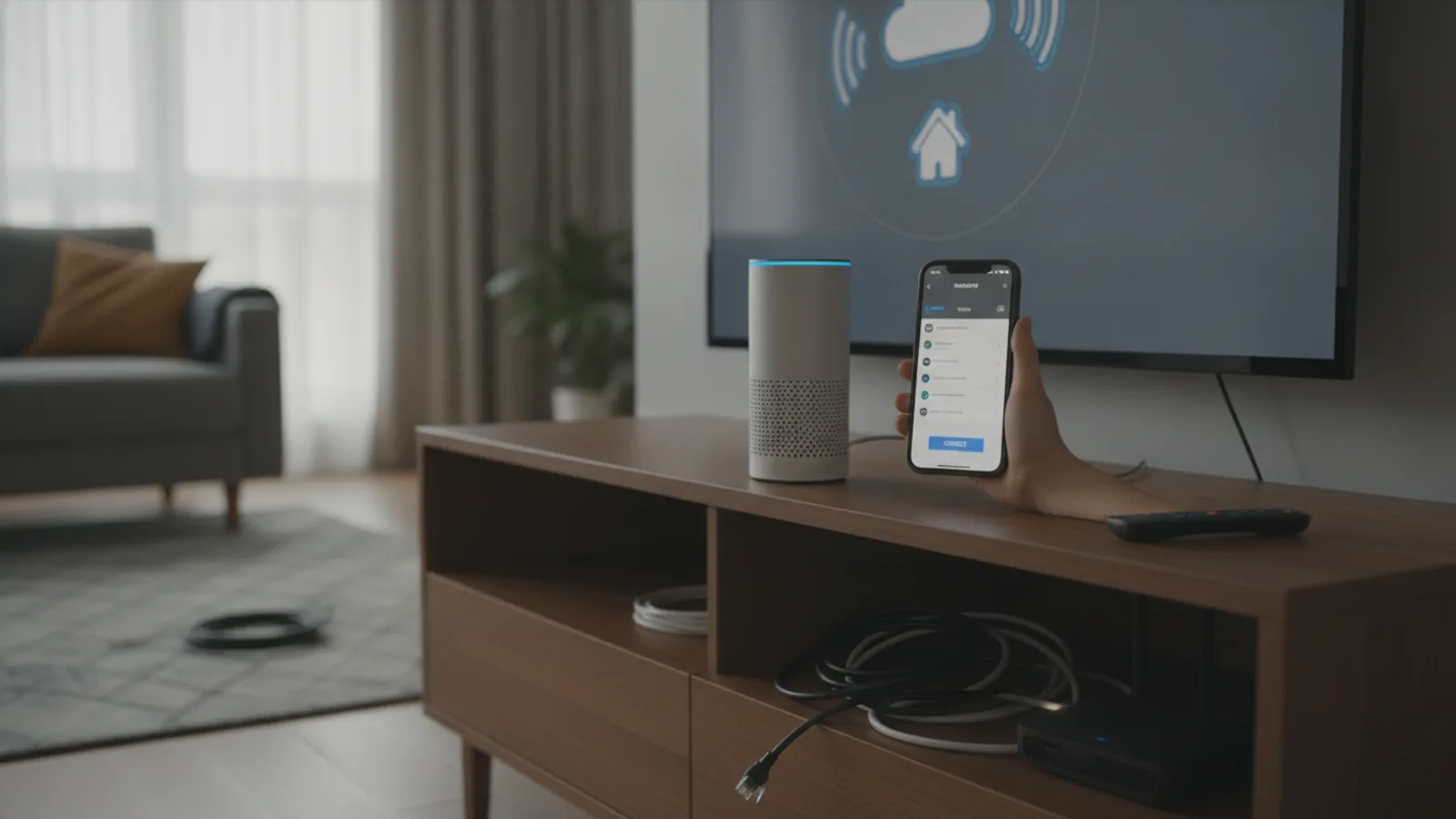
How To Connect Alexa To Internet
This guide explains how to approach how to connect alexa to internet, including the preparation, practical steps, common mistakes, and final checks that help you finish with confidence.
Before You Start
Step-by-Step Instructions
Quick Reference
Common Problems When You Connect Alexa to Internet
Even with a straightforward process, you might run into a snag. Here are the most common issues and how to resolve them.
The Alexa App Can't Find My Echo Device
If the app is stuck searching for your device during setup, there are a few things to check. First, confirm the orange light is spinning on the Echo. If it isn't, press and hold the action button to re-activate setup mode. Second, ensure Bluetooth is enabled on your phone; the app uses this for a faster initial handshake. Finally, try moving your phone closer to the Echo device, within a few feet, to guarantee a strong signal for the temporary connection.
My Home Wi-Fi Network Isn't in the List
This usually points to a signal strength issue. Your Echo might be too far from your broadband router to detect the network. Try moving it closer for the initial setup; you can move it back later. Also, be aware that some older Echo models can only connect to 2.4GHz Wi-Fi bands. If your router is only broadcasting a 5GHz signal, your device won't see it. Check your router settings to ensure the 2.4GHz band is enabled. If you have a hidden network, you must add it manually in the app.
Connection Fails After Entering the Password
An immediate connection failure after submitting the password is almost always caused by a typo. Go back and re-enter the password, using the 'Show password' feature to verify every character. Pay close attention to capital letters, numbers, and special symbols (!, @, #). If you're certain the password is correct, the issue could be with your router's security settings. Some routers might have MAC address filtering enabled, which would block new devices. You may need to log into your router's admin panel to temporarily disable this feature.
Alexa Connects to Wi-Fi But Not the Internet
Sometimes Alexa will confirm a Wi-Fi connection, but then say she's having trouble connecting to the internet. This means the device is talking to your router, but the router itself isn't providing an internet connection. The first step is to reboot your broadband router. Unplug it from the wall, wait a full minute, and plug it back in. Wait another five minutes for it to fully restart, then reboot your Echo device as well. If other devices in your home also can't access the internet, the problem is with your internet service provider, not your Alexa setup.
Advanced Tips for Connecting Alexa to Internet
For those looking to fine-tune their setup for maximum reliability, these tips can help improve your device's performance.
Choose the Right Wi-Fi Band
Most modern routers are dual-band, offering both 2.4GHz and 5GHz frequencies. While 5GHz provides faster speeds, its signal doesn't travel as far or penetrate walls as effectively as the 2.4GHz band. If your Echo device frequently drops its connection or seems slow to respond, and it's not in the same room as your router, try forcing it to connect to the 2.4GHz network. You can do this by going into the device's Wi-Fi settings in the Alexa app and selecting the 2.4GHz network name (if they are separate).
Consider a Static IP Address
By default, your router assigns a temporary (dynamic) IP address to every device. Occasionally, when this lease expires and needs to be renewed, a device can briefly lose connection. For advanced users, you can log in to your router's administration page and assign a permanent (static) IP address to your Echo device based on its MAC address (which you can find in the Alexa app). This can create a more stable, persistent connection.
Update Your Router's Firmware
Router manufacturers periodically release firmware updates to fix bugs, patch security holes, and improve performance. An unstable connection with your Echo could be a symptom of outdated router software. Check your router manufacturer's website for instructions on how to log in to its settings and check for a firmware update. This is good practice for your entire home network's health and security.
Optimise Placement in a Mesh Network
If you use a mesh Wi-Fi system (like Google Nest Wifi, Eero, or Deco), your Echo will try to connect to the nearest node. However, if you move the device, it might stubbornly remain connected to a more distant node with a weaker signal. To fix this, simply unplug your Echo and plug it back in. This forces it to rescan for the strongest available signal, ensuring it connects to the optimal mesh point for its new location.
How To Connect Alexa To Internet FAQ
Final Checklist for Connecting Alexa to Internet
FAQ
What should I check before I start?
Check the goal, the key prerequisite, and any current instructions that could change the safest next step for how to connect alexa to internet.
How can I tell whether the result is working?
Use the practical checks in the guide, pause if a required step is unclear, and verify the finished result against the intended outcome.