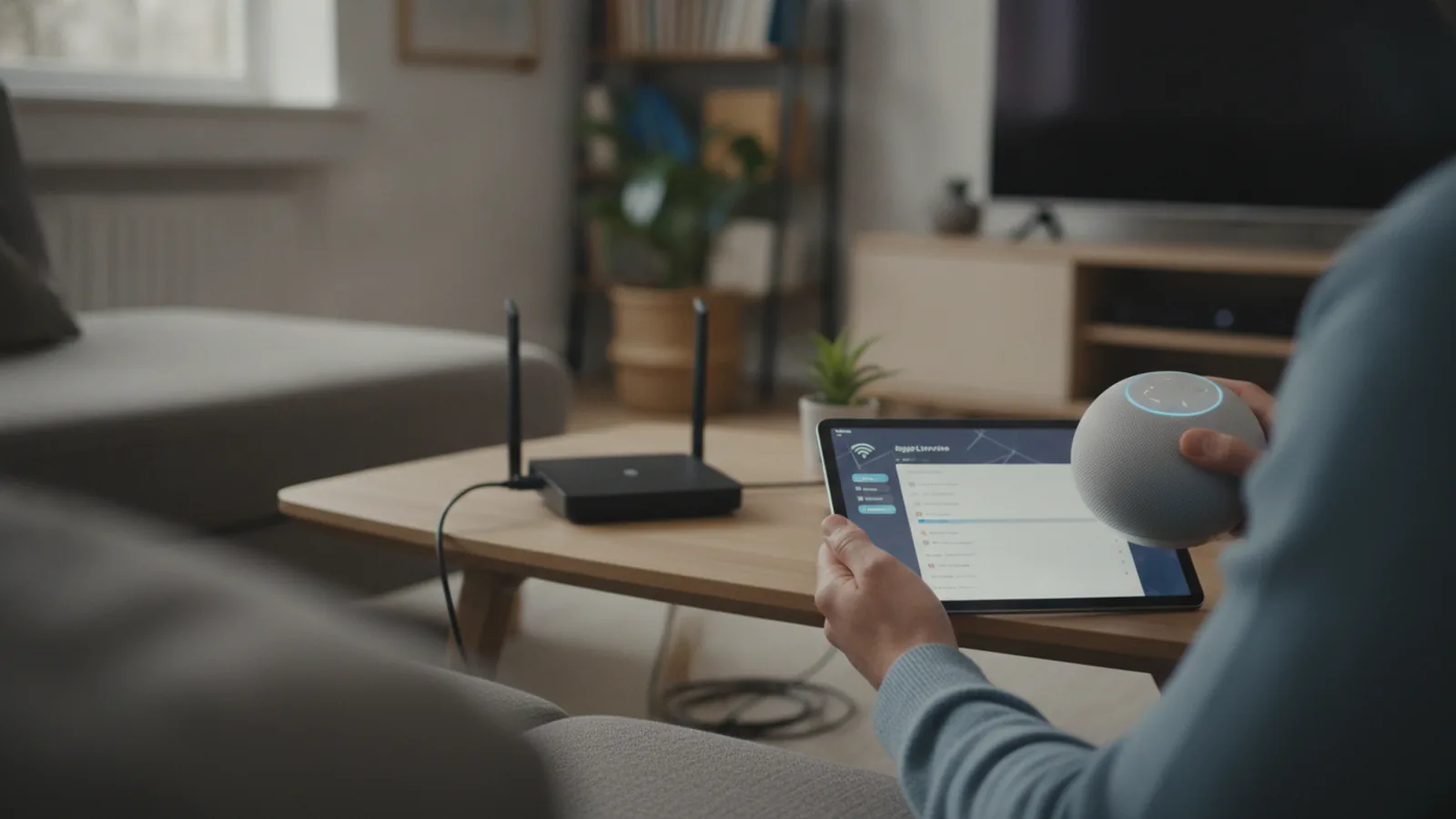
How To Connect Echo Dot To Wifi
This guide explains how to approach how to connect echo dot to wifi, including the preparation, practical steps, common mistakes, and final checks that help you finish with confidence.
Before You Start
Gathering a few key items and details beforehand will make the setup process much faster. Ensure you have everything on this list ready before you plug in your Echo Dot.
Step-by-Step Instructions
Quick Reference
Common Problems When You Connect Echo Dot To Wifi
Even with a straightforward process, you might encounter a few hurdles. Here are the most common issues and how to resolve them quickly.
Incorrect Wi-Fi Password
As mentioned, this is the most frequent problem. Passwords are case-sensitive. A 'G' is not the same as a 'g'. Double-check the sticker on your router and type the password slowly. If you've changed the password from the default, ensure you are using the most current one.
Weak Wi-Fi Signal
If your Echo Dot is too far from your broadband router, the signal may be too weak to establish a stable connection. Thick walls, metal appliances (like refrigerators), and even fish tanks can block Wi-Fi signals. During setup, keep the Echo Dot in the same room as the router. After it's connected, you can experiment with moving it further away.
Connecting to the Wrong Network Band (2.4 GHz vs. 5 GHz)
Most modern routers are dual-band, meaning they broadcast two networks: a 2.4 GHz network and a 5 GHz network. The 2.4 GHz band has a longer range but is typically slower, while the 5 GHz band is faster but has a shorter range. Echo Dots can connect to both, but sometimes they struggle with "band steering" where the router tries to automatically assign the best network. If you're having trouble, try connecting specifically to the 2.4 GHz network, as its longer range is often more reliable for smart devices placed around the home.
Router or Broadband Issues
Sometimes the problem isn't the Echo Dot, but your internet connection. Check if other devices like your phone or laptop can connect to the Wi-Fi and access the internet. If not, the issue is with your broadband. Try restarting your router by unplugging it for 30 seconds and plugging it back in. If that doesn't work, you may need to contact your internet service provider.
Advanced Tips for Connecting Echo Dot to Wifi
For those looking to optimise their smart home setup, these advanced tips can help ensure a rock-solid connection for your Echo Dot and other devices.
Consider a Wi-Fi Mesh System
If you live in a larger home or a property with thick walls, a single router may not provide adequate coverage. A Wi-Fi mesh system uses multiple nodes placed around your house to create a single, strong, seamless network. This eliminates dead zones and ensures devices like your Echo Dot have a stable connection, no matter which room they're in.
Separate Your Wi-Fi Bands
If your router combines the 2.4 GHz and 5 GHz bands under a single network name, it can sometimes confuse smart devices. Log in to your router's settings and see if you can give the two bands different names (e.g., "HomeWiFi_2.4GHz" and "HomeWiFi_5GHz"). This allows you to manually connect your Echo Dot to the 2.4 GHz band, which can improve stability and range.
Update Your Router's Firmware
Router manufacturers periodically release firmware updates to improve performance, patch security holes, and fix compatibility issues. Check your router manufacturer's website for instructions on how to check for and install the latest firmware. An up-to-date router can solve a host of mysterious connectivity problems.
How To Connect Echo Dot To Wifi FAQ
How do I reconnect my Echo Dot to Wi-Fi if I change my password?
You don't need to do a full reset. Open the Alexa app, go to Devices, select your Echo Dot, and tap the gear icon for Settings. Go to the Wi-Fi Network option and tap Change. The app will then guide you through the process of reconnecting with your new password.
Can I connect an Echo Dot to Wi-Fi without the app?
No, the Amazon Alexa app on a smartphone or tablet is required for the initial setup process. The app is what sends your Wi-Fi credentials to the Echo Dot. Once set up, the device connects to the internet directly and does not need the app to be running constantly.
Why is the light ring on my Echo Dot red?
A solid red light ring means the microphone has been muted. It's a privacy feature. Press the microphone on/off button (the one with a circle and a line through it) on top of the device to turn the microphone back on. This is not related to Wi-Fi connectivity.
My Echo Dot isn't showing up when the app scans for devices. What should I do?
First, ensure your Echo Dot is in setup mode (spinning orange light). If it isn't, press and hold the Action button. Second, make sure Bluetooth is enabled on your phone. Finally, try moving your phone closer to the Echo Dot. If it still doesn't appear, you may need to use the manual setup option where you connect to the Echo's "Amazon-XXX" Wi-Fi network from your phone's settings.
Final Checklist for Connecting Echo Dot to Wifi
Before you consider the job done, run through this quick final checklist to ensure a stable and lasting connection.