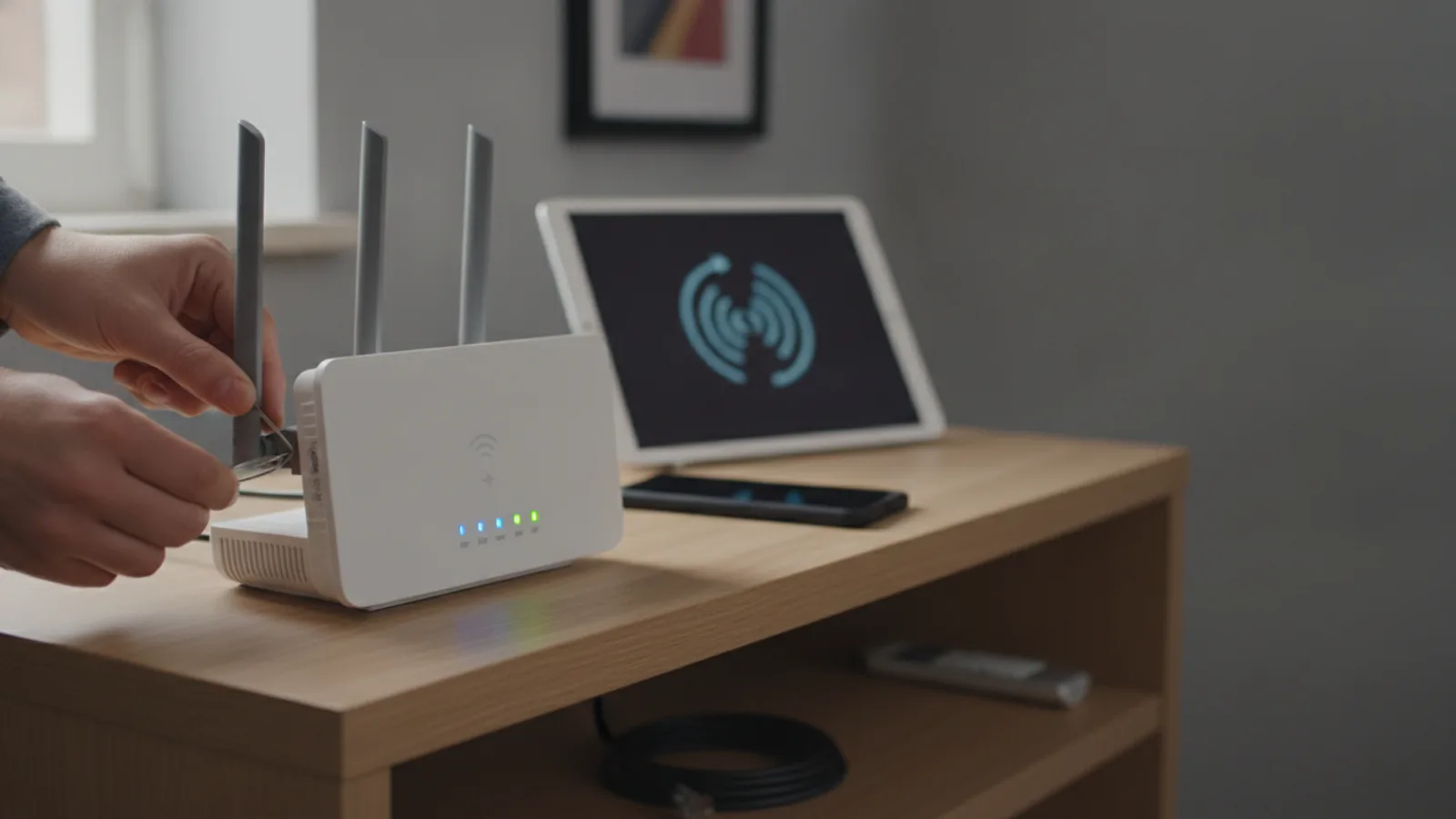
How To Reset Wifi Password
This guide explains how to approach how to reset wifi password, including the preparation, practical steps, common mistakes, and final checks that help you finish with confidence.
Before You Start
Step-by-Step Instructions
Quick Reference
Common Problems When You Reset Wifi Password
Admin Login Details Don't Work
This is the most common hurdle. Double-check the sticker on your router for a unique admin password. These are often case-sensitive. If it has been changed before and you've forgotten it, your only solution is a factory reset.
Can't Find the Wireless Settings Page
Router interfaces can be confusing. Look for keywords like 'Wireless', 'WLAN', 'Wi-Fi Security', or 'Network Settings'. If you're truly stuck, a quick web search for your router's model number (e.g., "BT Smart Hub 2 change wifi password") will often yield a specific guide or video.
My Internet Is Not Working After Changing the Password
First, ensure your main device (e.g., your laptop) has been successfully reconnected to the Wi-Fi with the new password. If it has, but you still can't access the internet, try rebooting the router by unplugging it from the power for 30 seconds and plugging it back in. This often resolves connectivity issues.
Advanced Tips for Wifi Password Management
Use a Password Manager
To avoid forgetting your new password, store it in a reputable password manager. This also makes it easy to share securely with family members or guests without having to write it down on a piece of paper.
Create a Guest Network
Most modern routers allow you to create a separate "guest" network. This is a secondary Wi-Fi network with a different name and password. It provides internet access to visitors without giving them access to other devices on your main network, such as shared drives or printers. This is a significant security enhancement.
Understand WPA2 vs. WPA3
In your router's security settings, you'll see options like WPA2 or WPA3. WPA2 is the long-standing standard and is very secure for home use. WPA3 is a newer, even more secure standard. If your router and devices support WPA3, it's the best option to choose for maximum protection.
Separate Your 2.4GHz and 5GHz Passwords
While you can use the same password for both your 2.4GHz and 5GHz Wi-Fi bands, some users prefer to give them slightly different names (e.g., "MyHomeWiFi" and "MyHomeWiFi_5G") and different passwords. This allows you to manually choose which band a device connects to, which can be useful for troubleshooting or forcing a device onto the faster 5GHz band.
How To Reset Wifi Password FAQ
What's the difference between my Wi-Fi password and my router admin password?
Your Wi-Fi password (or Pre-Shared Key) is what you give to devices to let them connect to your wireless network. Your router admin password is used to log in to the router's settings panel to make changes, like altering the Wi-Fi password.
Will changing my Wi-Fi password make my internet faster?
No, the act of changing the password itself doesn't affect your broadband speed. However, it will kick off any unauthorised devices (like a neighbour who may have guessed your old password) that could have been using your bandwidth, which might result in a perceived speed improvement.
How often should I change my Wi-Fi password?
For most households, there is no need to change it on a fixed schedule. A good rule of thumb is to change it once a year, or immediately if you suspect someone has gained unauthorised access or after you have given the password to many temporary guests.
Can I reset my Wi-Fi password from my phone?
Yes. As long as your phone is connected to the Wi-Fi network, you can open a web browser on it, navigate to your router's IP address, and follow the same steps to log in and change the password. Just be aware you will be disconnected once you save the new password and will need to reconnect.