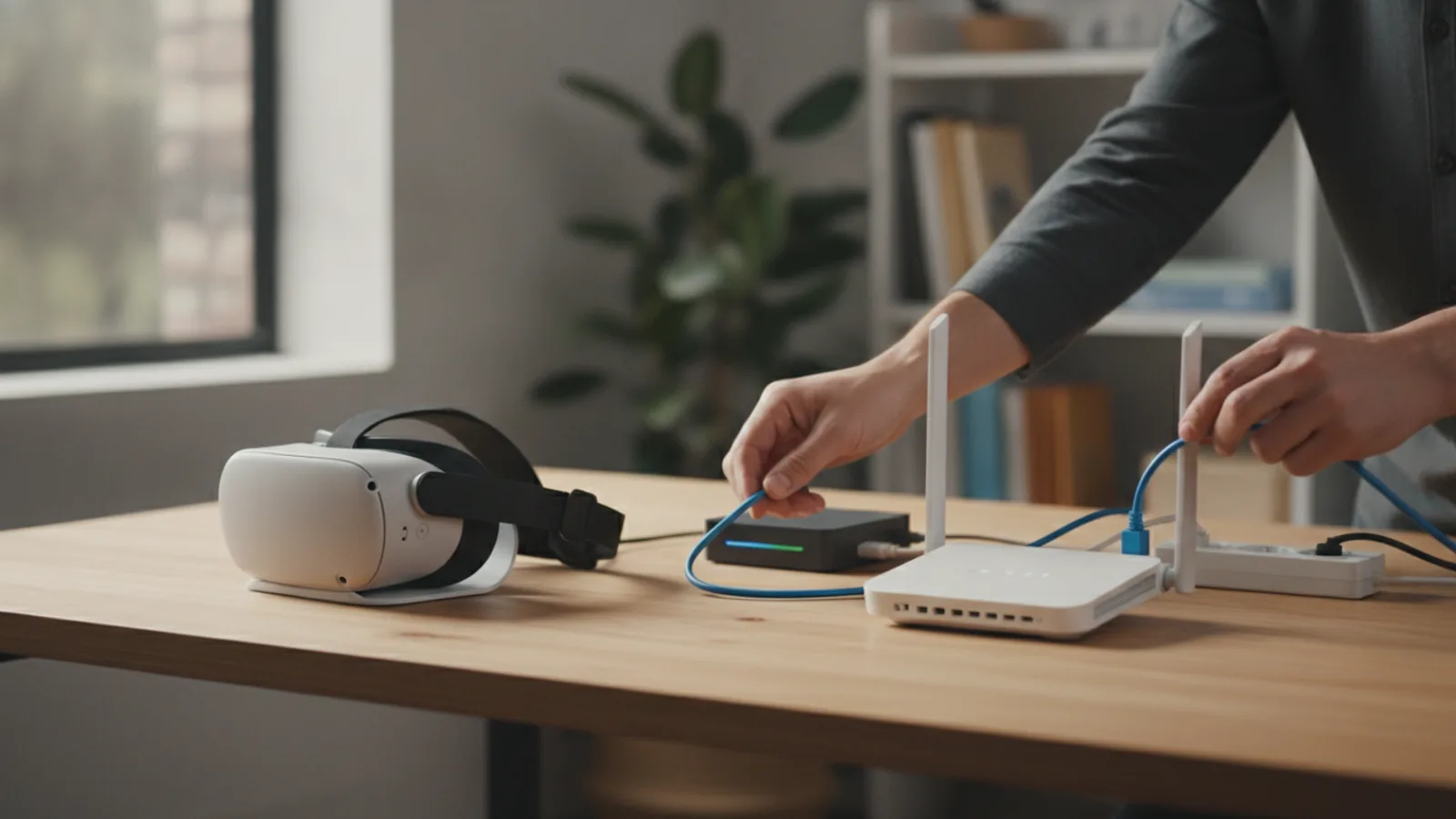
How To Setup Dedicated Router For Meta Quest 3s
This guide explains how to approach how to setup dedicated router for meta quest 3s, including the preparation, practical steps, common mistakes, and final checks that help you finish with confidence.
Before You Start
Gathering the right equipment and understanding your current network is key. This process involves changing router settings, so it's best to work without interruptions. This setup will not replace your main home internet router; it adds a second one purely for VR.
What You Need
Safety, Timing, or Context Checks
Step-by-Step Instructions
Follow these steps carefully to configure your dedicated router. The goal is to create a small, isolated, and high-performance network for just your PC and your Quest 3.
Quick Reference
Common Problems When You Setup a Dedicated Router for Meta Quest 3s
Even with careful setup, you might run into a few issues. Here are the most common ones and how to fix them.
Problem: I can't connect to the internet on my PC or Quest.
This usually points to a cabling issue. Double-check that the Ethernet cable from your main router's LAN port is plugged into the dedicated router's WAN/Internet port. If this connection is wrong, the dedicated router won't get an internet signal to pass along.
Problem: My performance is still poor, with lots of stutter.
This is almost always a Wi-Fi interference issue. First, make sure your Quest 3 is the only device connected to the dedicated router's Wi-Fi. Second, try changing the channel width from 160MHz down to 80MHz, as it's more robust. Third, use a Wi-Fi analyser app to find a less crowded 5GHz channel and set it manually in your router's settings.
Problem: Air Link or Virtual Desktop says my PC is not on the same network.
This is the classic symptom of not enabling Access Point (AP) Mode. If the dedicated router is still in its default "Router" mode, it has created a separate, secondary network. Your Quest and PC can see each other, but they are firewalled from the main network. Go back into the router's settings and find the "Operation Mode" to switch it to AP Mode.
Problem: After enabling AP Mode, I can no longer access the router settings.
This is normal. When you switch to AP Mode, your main router assigns the dedicated router a new IP address. To find it, you'll need to log into your main router's admin panel and look at the list of "Connected Devices" or "DHCP Clients". You should see your dedicated router listed there (by its name or MAC address) with its new IP. Use that new IP to access its settings.
Advanced Tips for Your Dedicated VR Router
Once your basic setup is stable, you can try these tweaks for even better performance.
How To Setup Dedicated Router For Meta Quest 3s FAQ
Do I need an expensive gaming router for this?
Not necessarily. While high-end "gaming" routers have powerful processors, a reliable mid-range Wi-Fi 6 (AX) router with good 5GHz performance and an AP mode is more than sufficient. The key is that it's *dedicated*, not that it has a flashy design or "gaming" in the name.
Can I use the old router my Internet Service Provider gave me?
Possibly, but it's often not ideal. ISP-provided routers are typically built to a low cost and may lack features like AP mode, band splitting, or channel selection. Their performance can also be underwhelming. If it's a Wi-Fi 5 (AC) or newer model and has AP mode, it's worth a try, but a separate, modern router will almost always perform better.
Will this make my internet download speed faster?
No. This setup does not change the speed of your internet connection from your provider. It optimises your *local network* (your LAN) for the specific task of streaming high-bitrate video from your PC to your headset. Your game downloads and web browsing will still be limited by your internet plan.
Why is an Ethernet connection to the PC so important?
Wireless communication is half-duplex, meaning it can only send or receive at any given moment, not both. A wired Ethernet connection is full-duplex, allowing it to send and receive simultaneously. Connecting your PC via Ethernet eliminates half of the wireless journey (PC -> Router). The data only has to travel wirelessly one way (Router -> Quest 3), which dramatically cuts latency and improves stability.
Is Wi-Fi 6E necessary for a good experience?
No, but it is the current gold standard. Wi-Fi 6E uses the 6GHz band, which is brand new and virtually free of interference from other devices. This can provide the most stable connection possible. However, a well-configured Wi-Fi 6 network on a clear 5GHz channel is already excellent and delivers a superb experience for the vast majority of users.
Final Checklist for Your Dedicated Router Setup
Before you jump into a long gaming session, run through this final checklist to confirm everything is optimised.
With this setup complete, you have created the ideal network environment for wireless PC VR. Enjoy the freedom and immersion of a smooth, low-latency virtual reality experience.